

Organized by client and environment
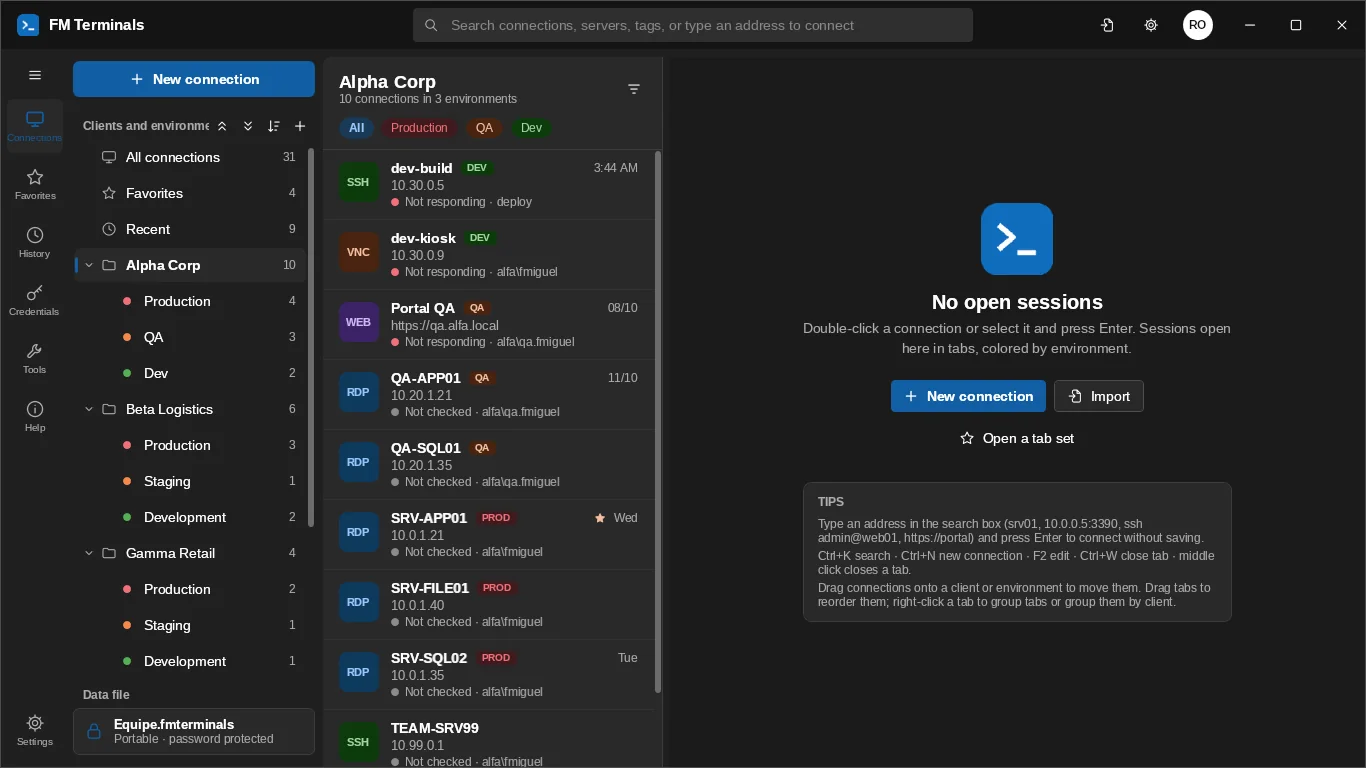
Production, Staging and Development with colors; production asks for confirmation before connecting.
RDP, SSH, SFTP, VNC, Serial, web consoles and SQL Server in tabs, with an encrypted password vault. Built for people who manage many clients and environments.
1 month free trial with everything unlocked · Windows 10 and 11
Designed for people who work with many clients and environments every day.
Production, Staging and Development with colors; production asks for confirmation before connecting.
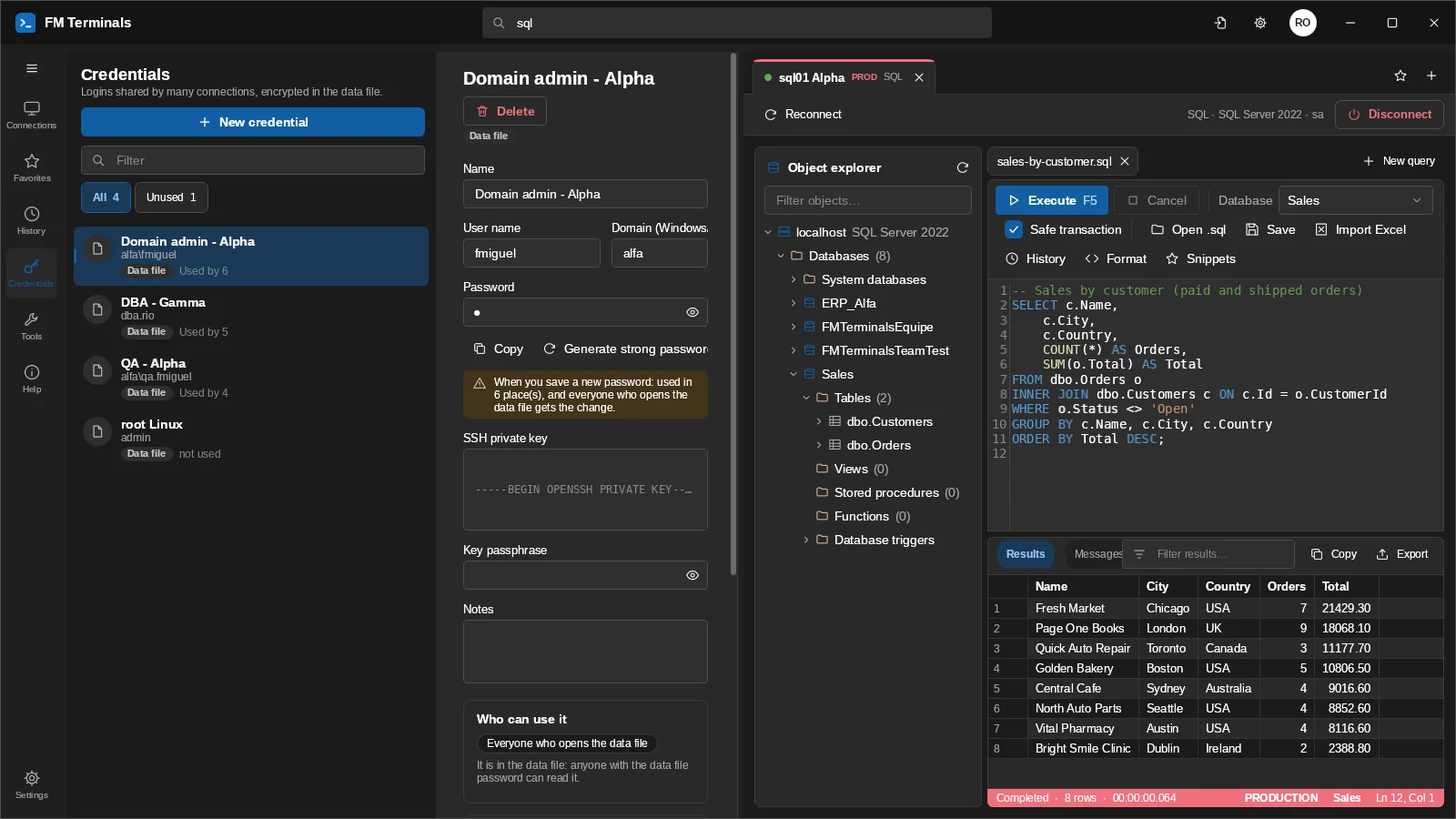
One login per client works for all of its servers; change the password in one place.
Reach servers behind a bastion: RDP, SQL, Web and SSH go through the tunnel on their own.
Move a session to another monitor and open your daily routine with one click.
Console cable on switches, routers and firewalls: port, speed and 8N1, with automatic login.
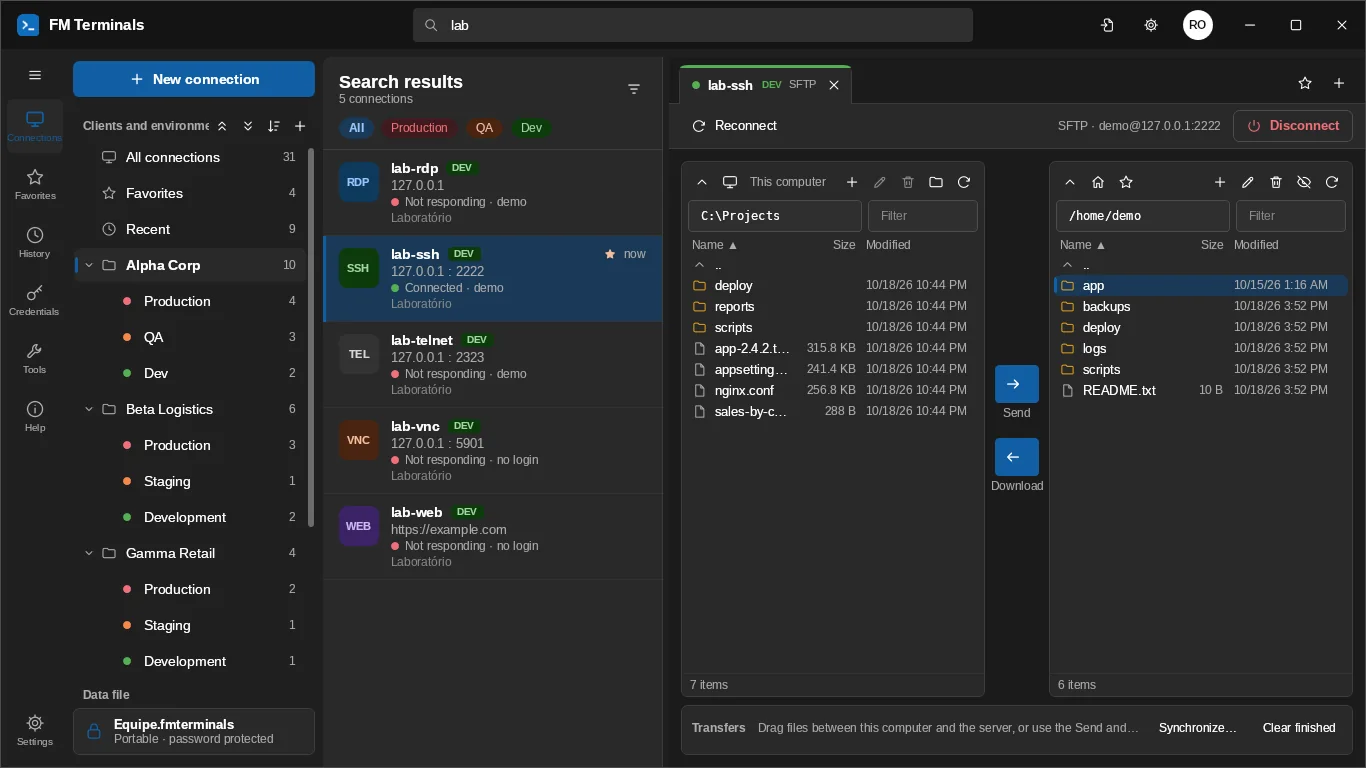
Computer and server side by side; drag to upload and download; synchronize folders.
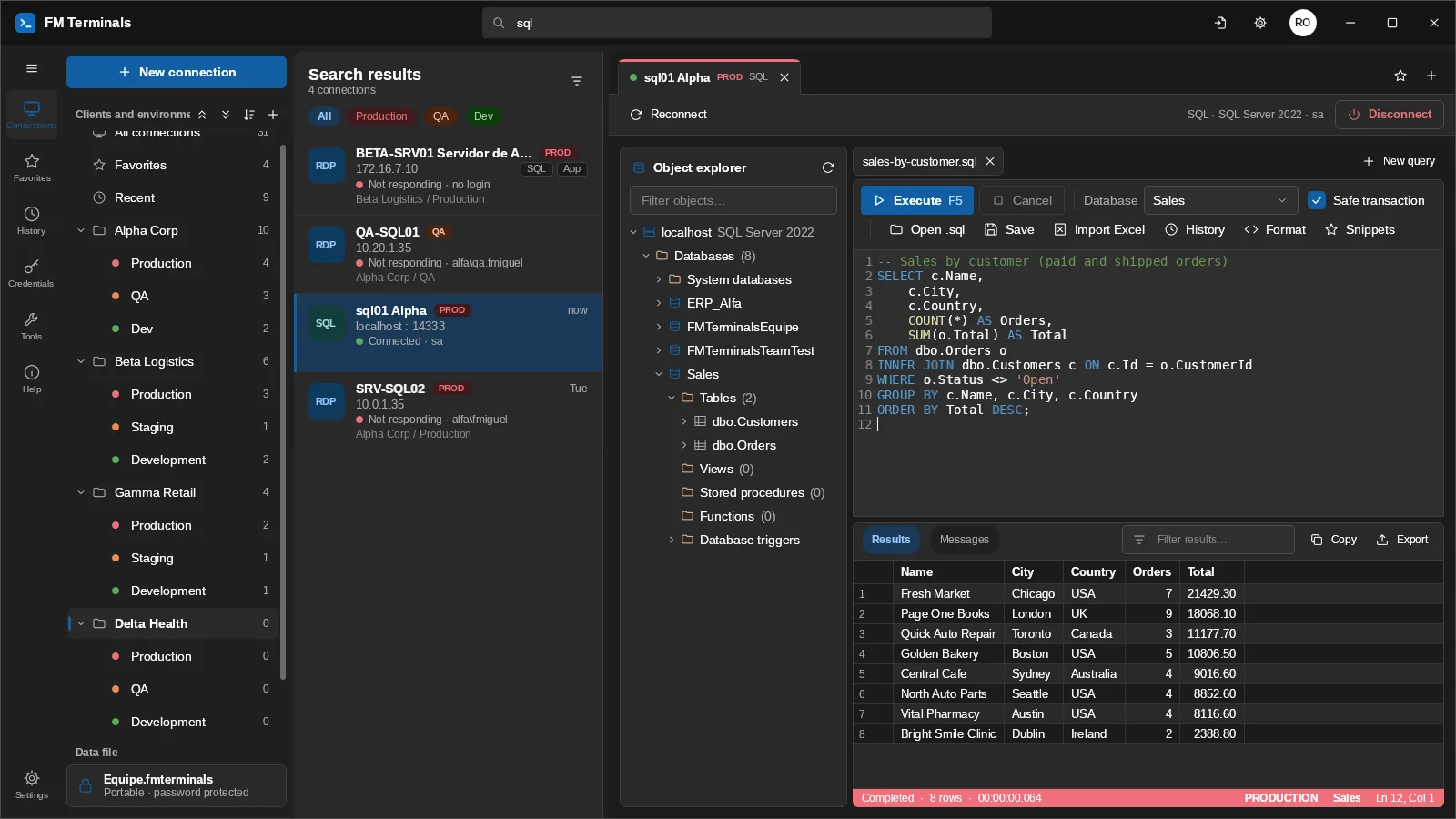
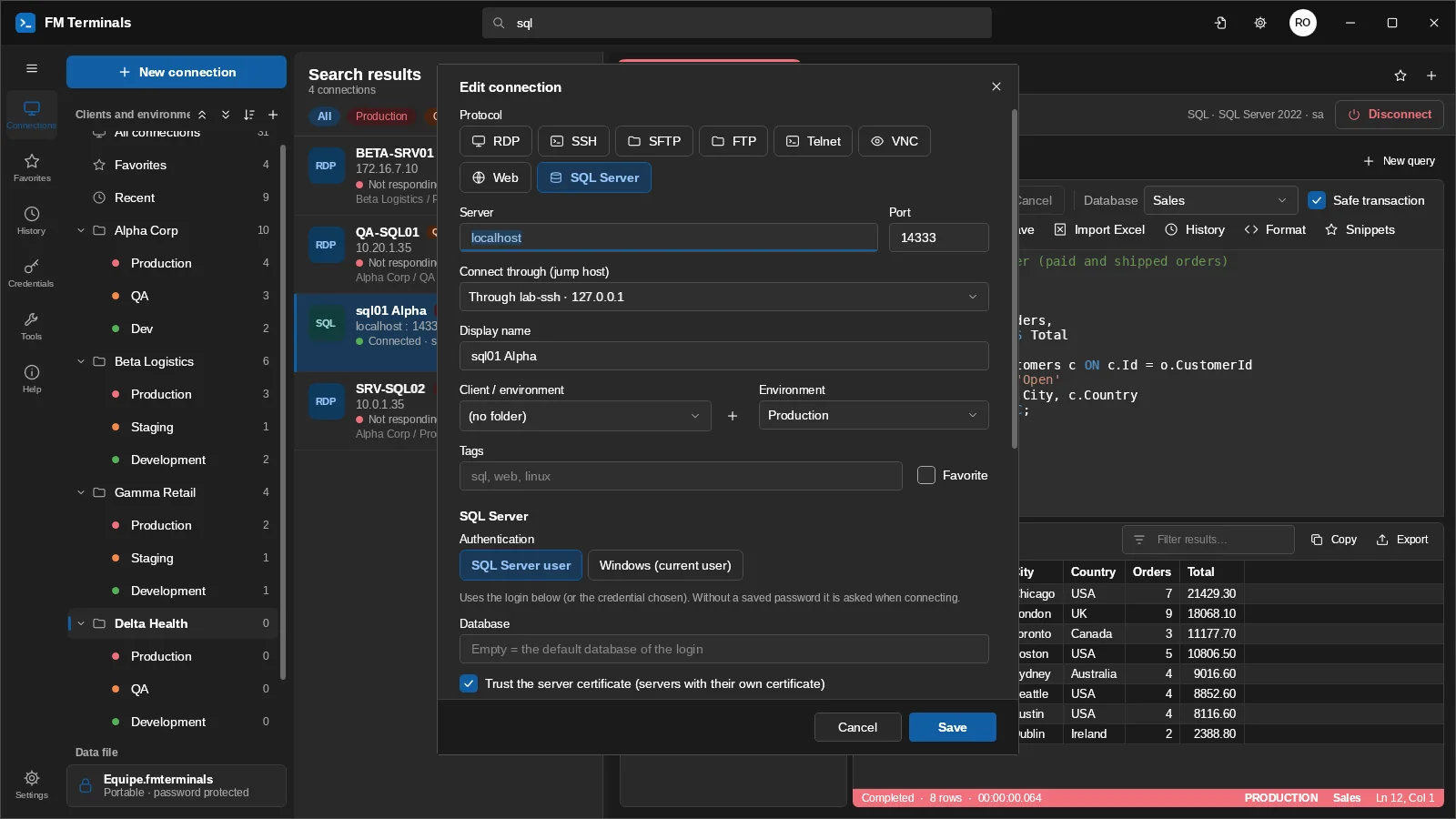
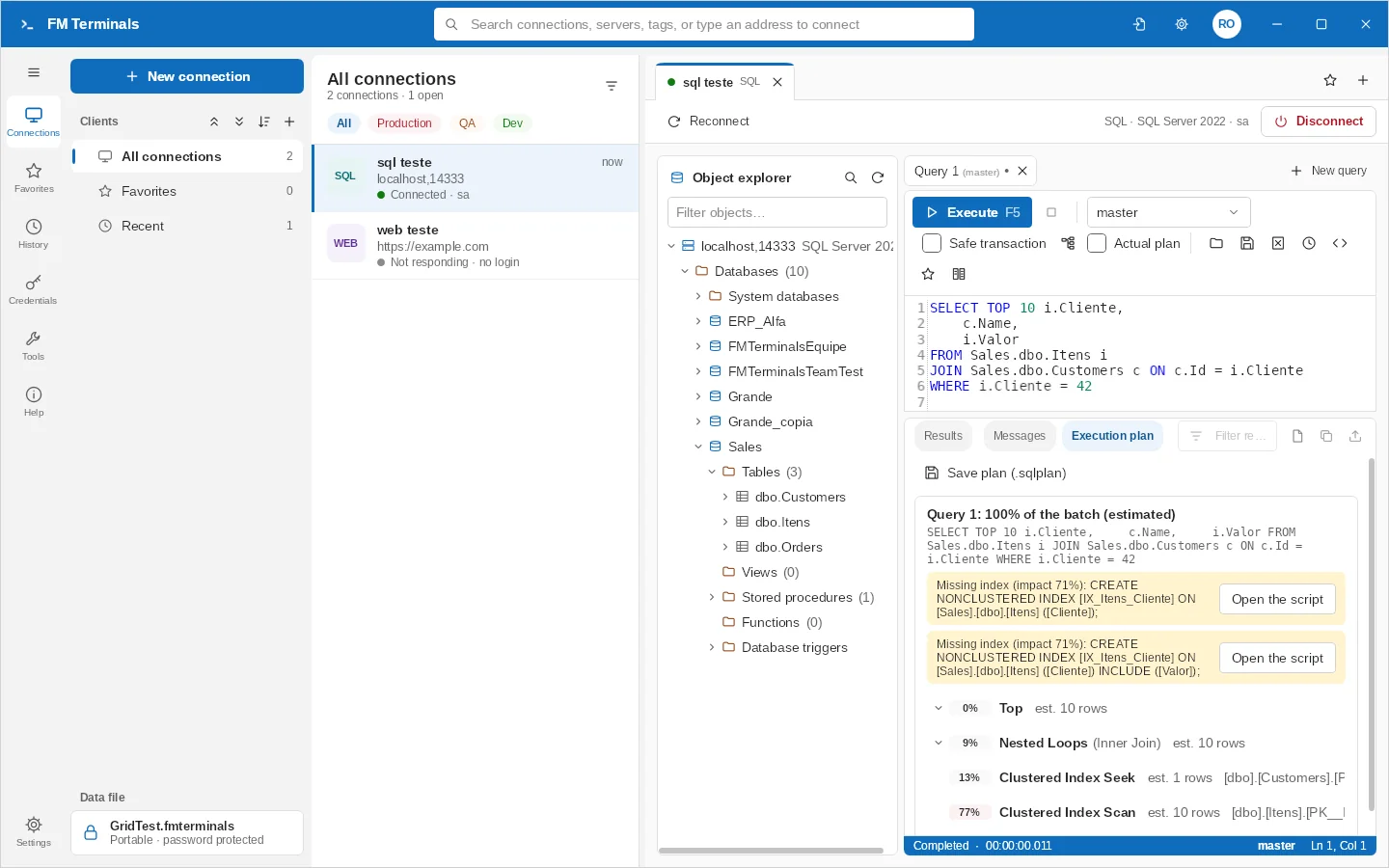
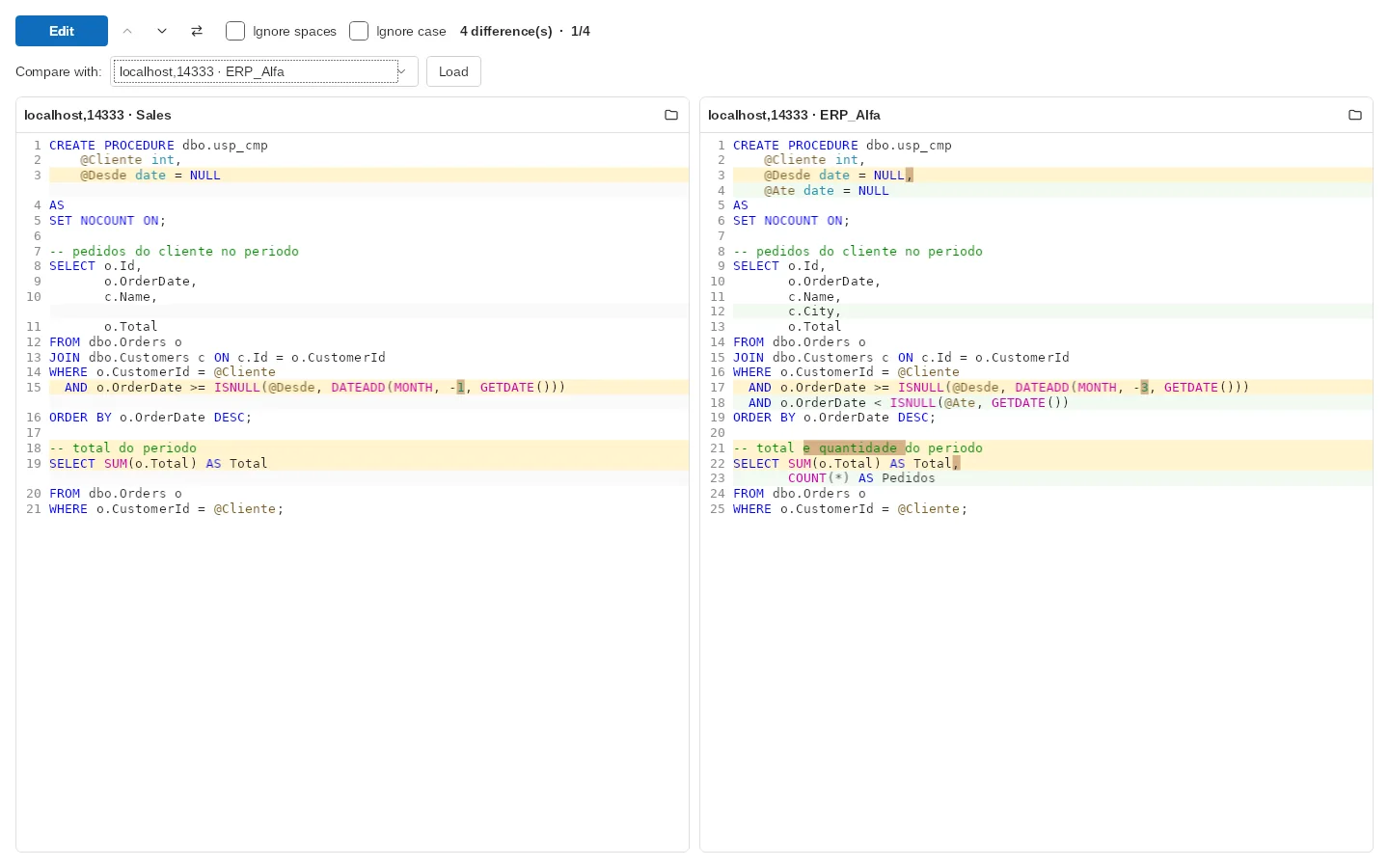
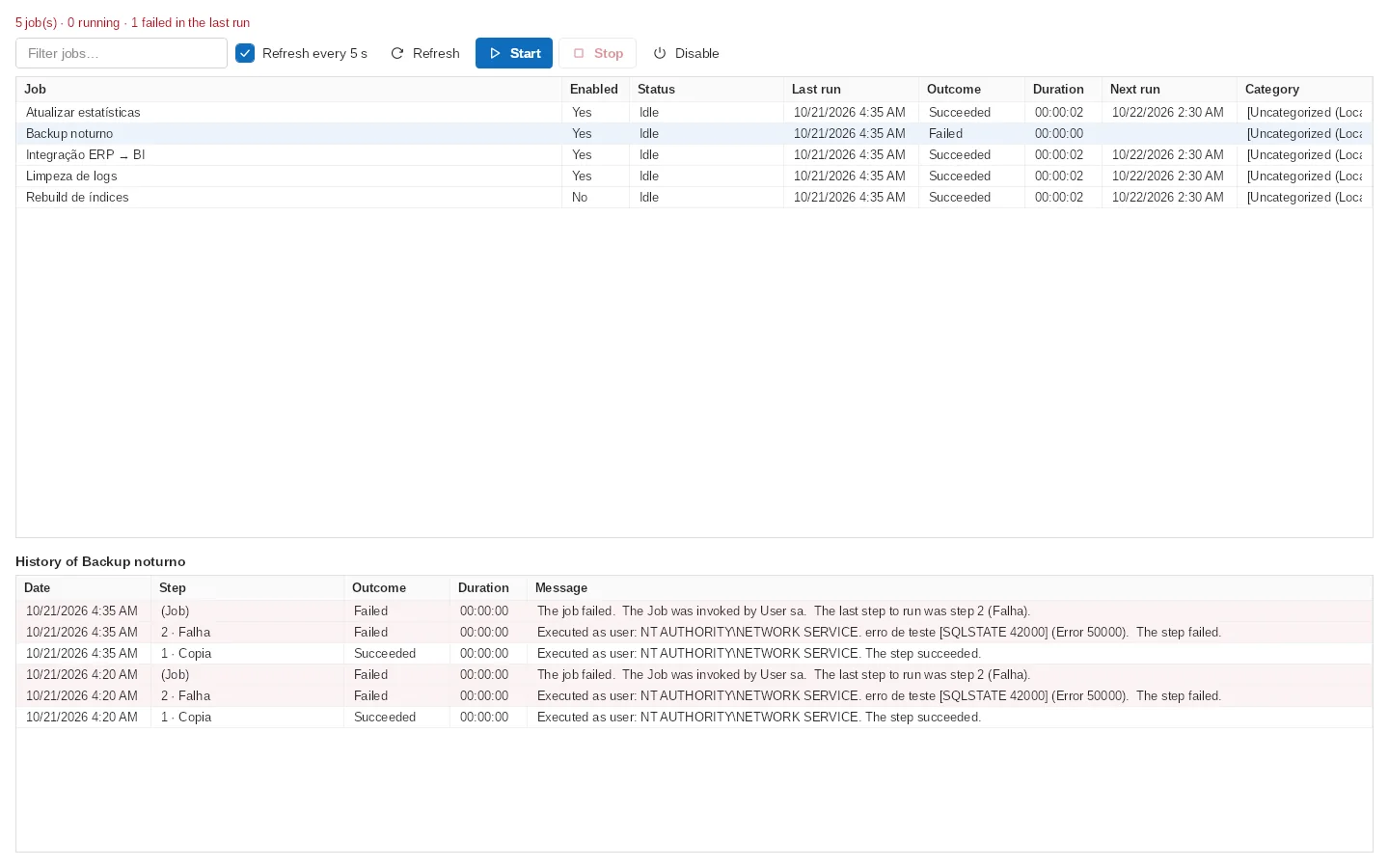
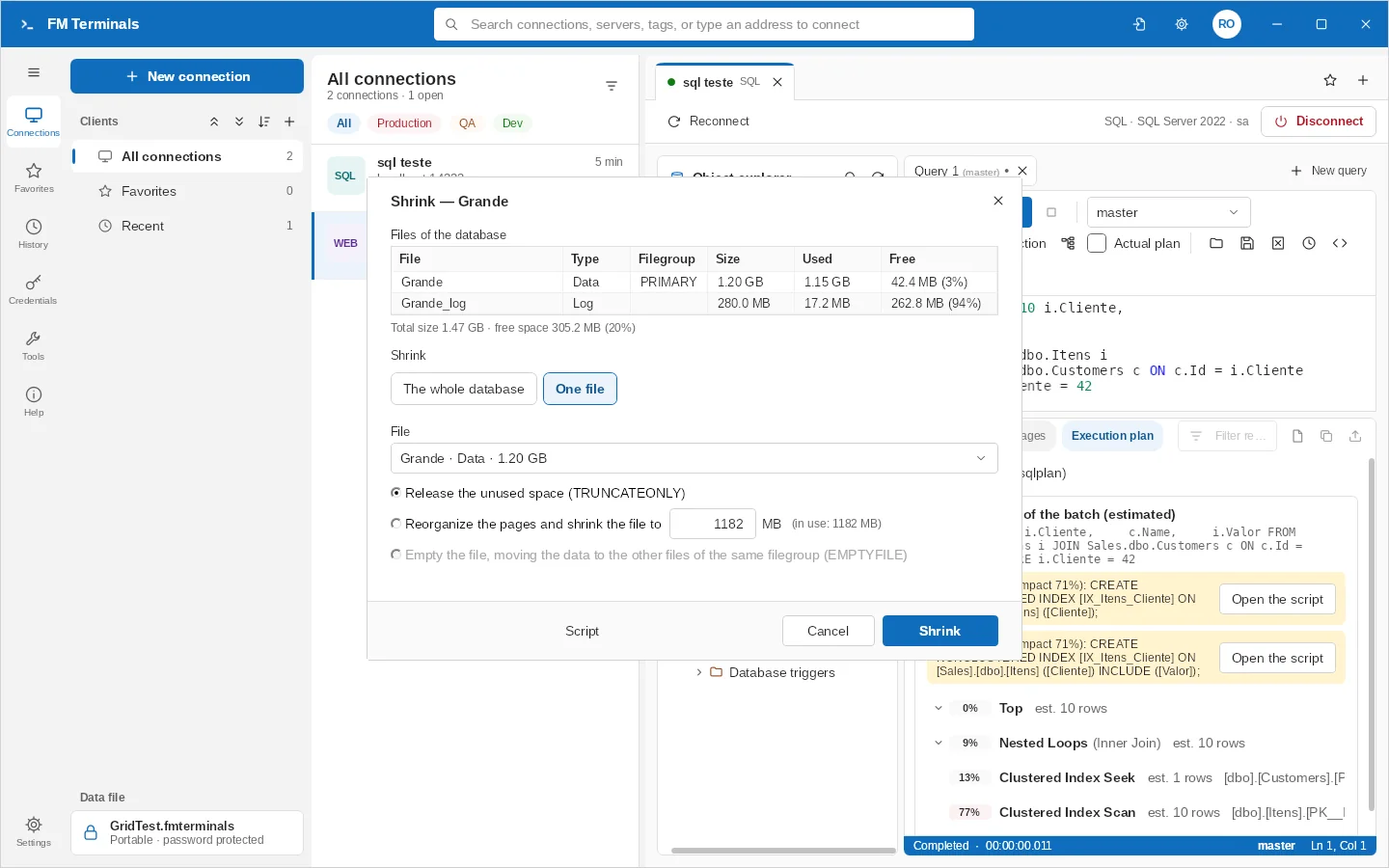
Object explorer with several servers in the same tab, queries, execution plan, a grid with sorting and filters, code comparison across databases and servers, create/rename/delete/copy databases, properties, backup, restore, shrink, CHECKDB and index maintenance, logins with server roles (sysadmin), users and roles, SQL Server Agent jobs, script generation and Excel import. Also as FM Terminals SQL, its own Start menu icon with just the SQL client.
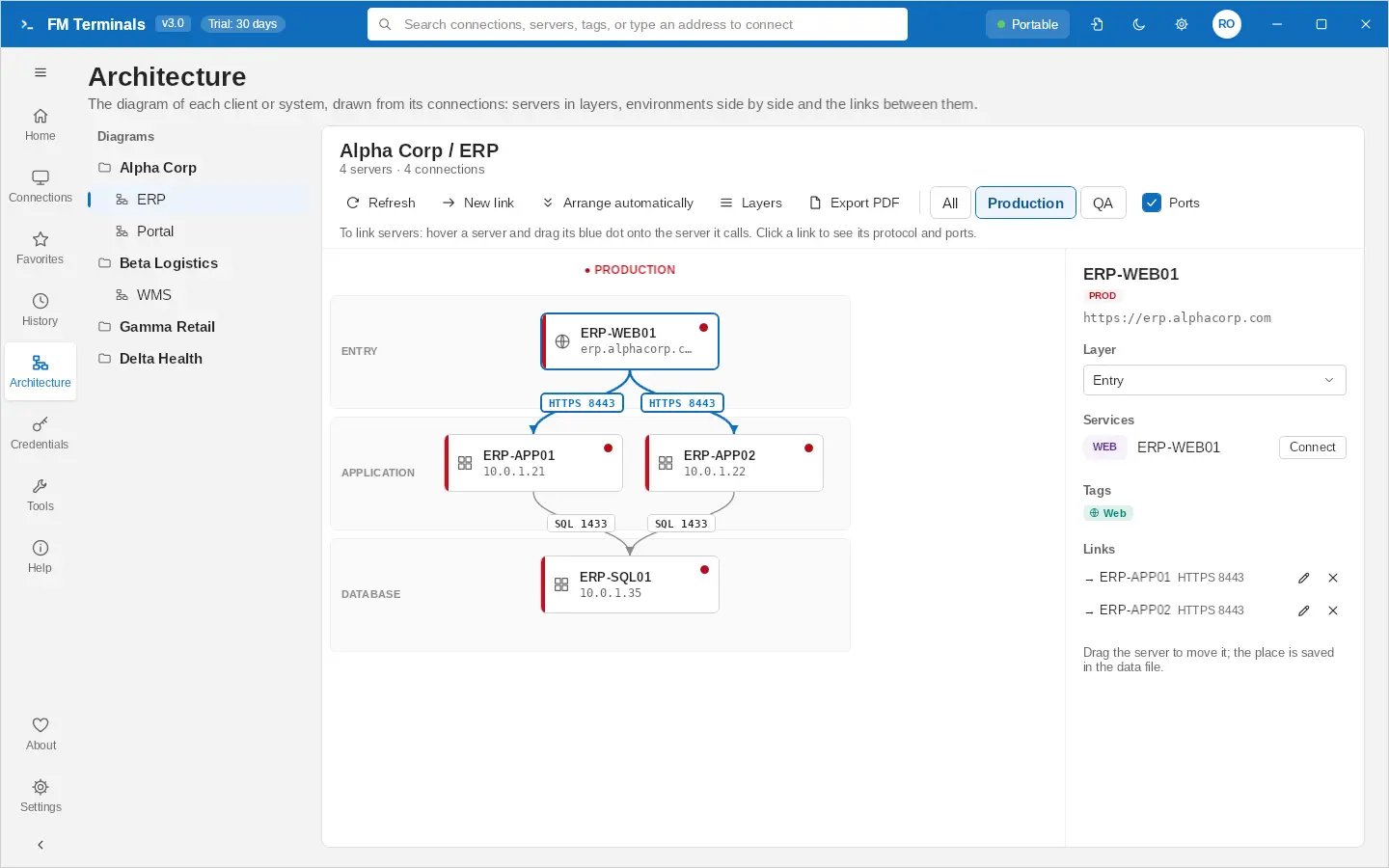
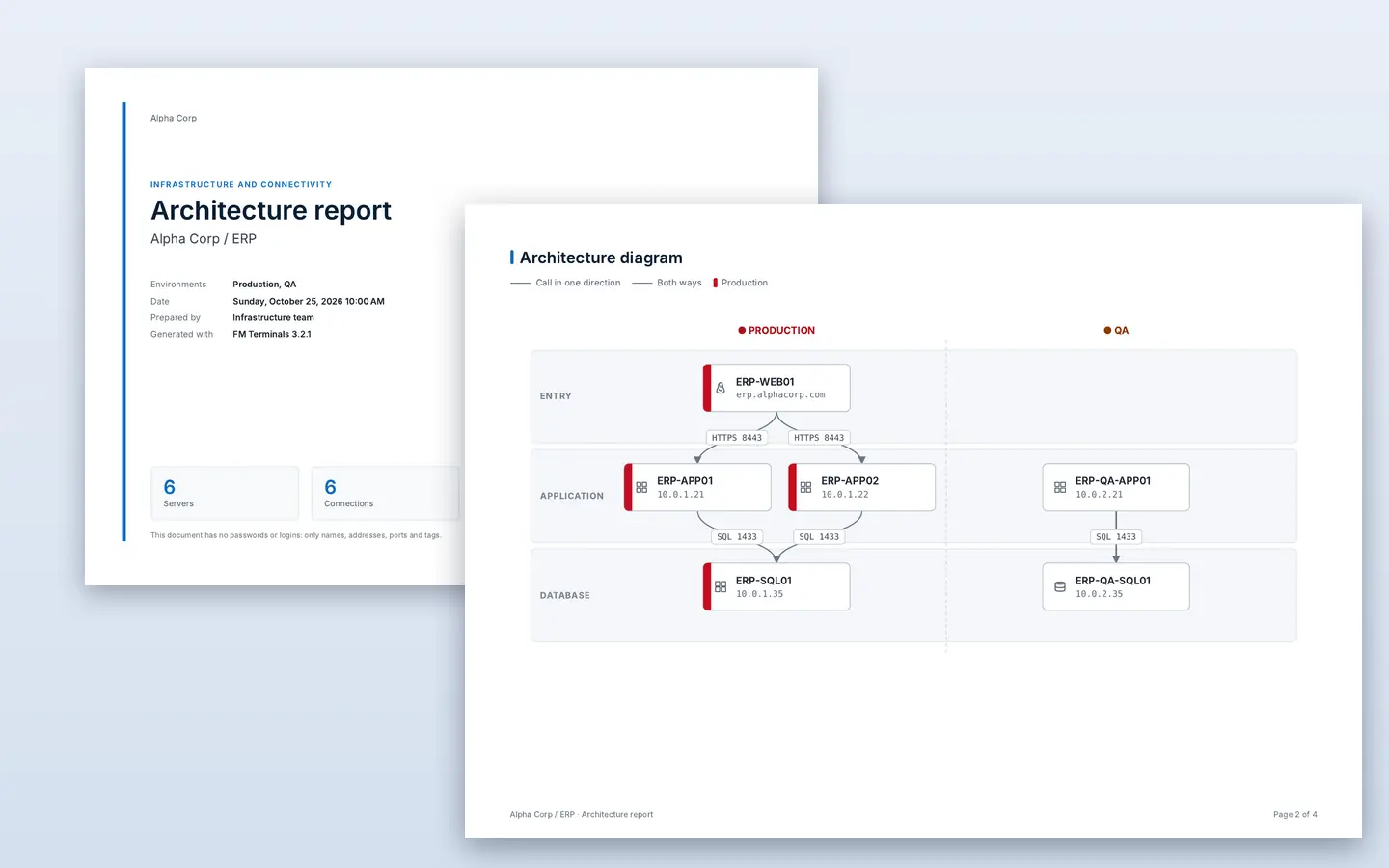
The diagram of each client or system built from its connections, in layers, with Production, QA and Dev side by side. Link servers by dragging one onto another, with protocol, ports and direction, and export a PDF report with a cover, diagram, server inventory and link matrix for the firewall.
See live every command and procedure an application runs on SQL Server, with duration, CPU, reads and rows, filters by application, database, login and computer, and CSV export. Uses Extended Events and also works on Azure SQL Database.
Describe the query and Claude, by Anthropic, writes it from the database structure (tables, columns, keys and procedures), never the data. It fixes the error of the last run, changes the editor's query and writes table scripts; nothing runs on its own. With your own API key, the model of your choice and this month's spend in sight.
Organize with AI suggests a client, system, environment and tags for imported connections, for you to review before they apply. Explain with AI says why a query is slow, from its execution plan or the query trace, and which index helps. In Architecture, AI suggests links between servers. Check passwords finds repeated, weak, old and unused credentials without leaving your computer.
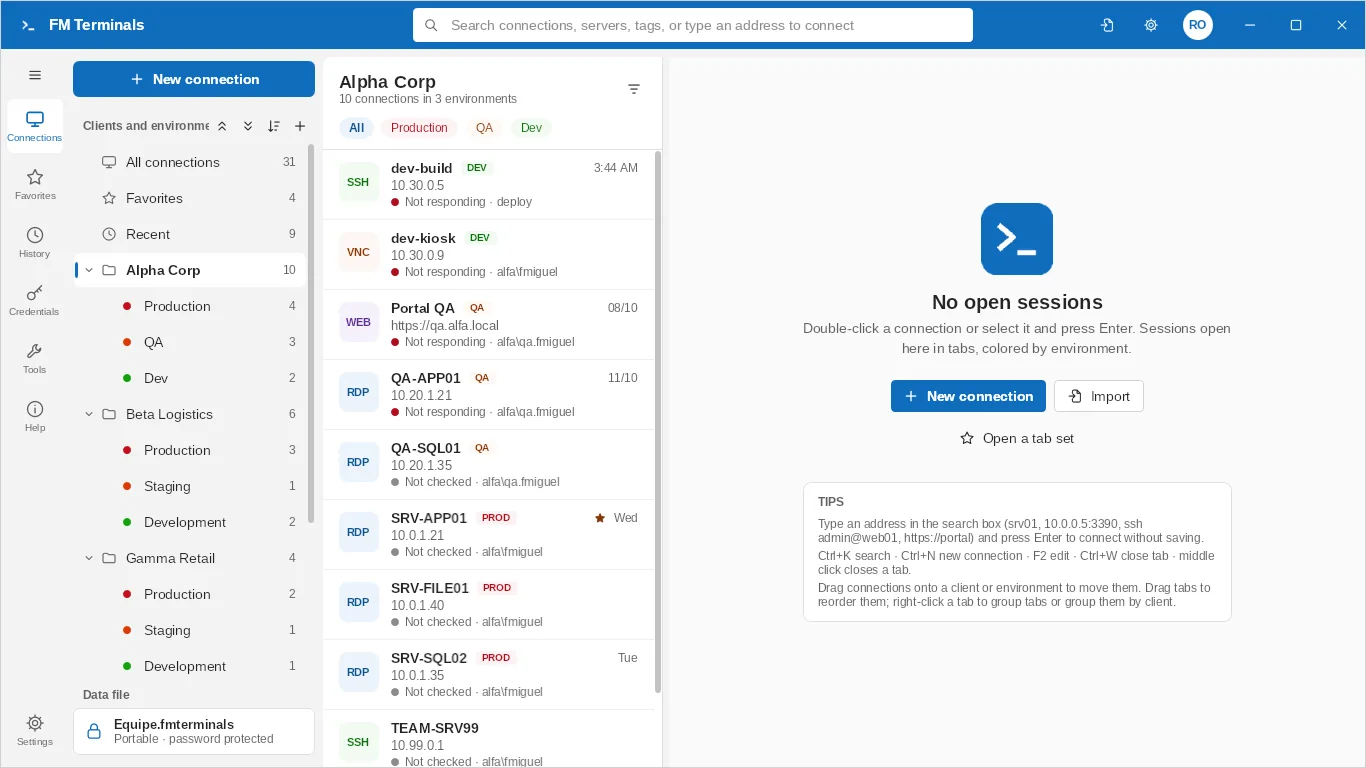
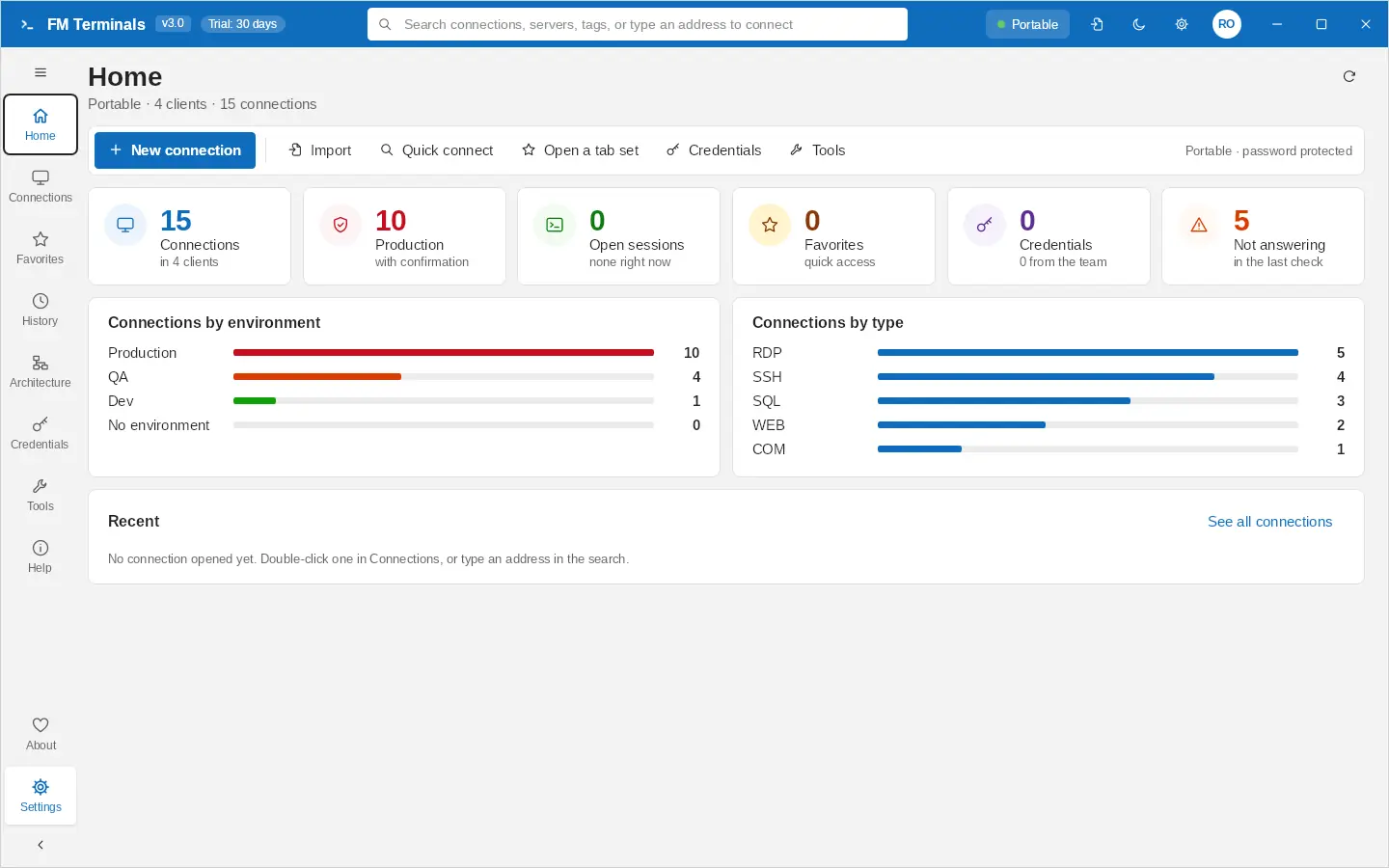
Your data file at a glance: connections, production, open sessions and servers not answering, by environment and by type. History keeps every connection opened on this computer, with a client filter and Connect.
One line per client, with how many connections it has in Production, QA and Dev; the list split by environment with Production always first. Drag to change environment, organize by system and use tags with color and icon (Linux, Windows, database, web) to filter.
Changing the data file password also changes the key that protects the data: whoever knew only the old password, like someone who left the team, can no longer open the new versions. Teammates type the new password once.
Every change to a procedure, view or function keeps the previous version; compare and restore. In a team, everyone sees the history.
A data file shared through the company SQL Server; each person has their own user, personal passwords only they can see, and passwords shared by group.
Keep the file in a OneDrive, Google Drive or Dropbox folder; type the password once on each PC.
Terminals, RDCMan, mRemoteNG, MobaXterm, .rdp files and CSV spreadsheets.
The app locks itself when you step away; sessions stay connected. No data is sent to us.
Coming from MobaXterm, mRemoteNG, RDCMan or Terminals? See the comparison →
Create a client, open a tab set, join an RDP session and run a SQL query.
Start free. Buy only if you need unlimited connections.
Up to 3 connections
After the 1-month trial, the app keeps opening with up to 3 connections, forever.
US$ 19.99/year
The Store shows the price in your local currency.
Corporate license — contact us
Everything that changed in FM Terminals, from the latest version back to the start of the project.
Test builds: 2.0.13-teste1, 2.0.13-teste2, 2.0.13-teste3
Test builds: 2.0.12-teste1
Test builds: 2.0.11-teste1
Test builds: 2.0.10-teste1
Test builds: 2.0.9-teste1
Test builds: 2.0.8-teste1, 2.0.8-teste2
Test builds: 2.0.7-teste1
Test builds: Teste A
Test builds: 2.0.4-teste, 2.0.4-teste2, 2.0.4-teste3, 2.0.4-teste4
Test builds: 2.0.3-teste-atualizacao
Test builds: 2.0.2-teste
Test builds: 2.0.0-beta.2, 2.0.0-beta.3, 2.0.0-beta.4, 2.0.0-beta.5, 2.0.0-beta.6, 2.0.0-beta.7, 2.0.0-beta.8
A remote connection manager for Windows 10 and 11 (x64 and ARM64): RDP, SSH, SFTP, FTP, Telnet, Serial, VNC, Web and SQL Server in tabs, organized by client and environment (Production, QA, Dev), with an AES-encrypted password vault, an SSMS-style SQL Server client and teamwork through the company SQL Server. It is sold on the Microsoft Store and developed by Flávio Miguel (BRSEA Tecnologia).
Yes. Like them it brings many connection types together in tabs, and it adds organization by client and environment, a password vault, a SQL Server client and teamwork. It imports connections from MobaXterm, mRemoteNG, RDCMan, Terminals and .rdp files. See the feature comparison.
No. Download it free and use it for 1 month with everything unlocked.
It keeps working for free with up to 3 connections. For unlimited connections, buy the annual license inside the app.
Through the Microsoft Store, with a card, PayPal or Microsoft account balance. The license is annual (1 year, renewable) and renewal also goes through the Store.
Yes. The license is tied to your Microsoft account, and the data file can live in a cloud folder.
No. They stay encrypted on your computer, in your cloud or on your company SQL Server. There is no telemetry.
Write to support@brsea.com.br: we have a corporate license and installation for those cases.
Yes. Import your connections and credentials in Tools → Import.
Yes.
13, with the interface and help translated: Português (Brasil), Português (Portugal), English, Español, Français, Deutsch, Italiano, Nederlands, Dansk, Norsk, Polski, Русский, 中文 (简体). It opens in the Windows language and can be changed in Settings.
Yes, since 2.0.28: create a Serial connection, pick the port (COM3…) and the speed.
Yes: export your sessions in MobaXterm (.mxtsessions) and use Import › MobaXterm. Passwords do not come along (MobaXterm does not export them).
Tools › Share a copy with a password (it includes the team credentials you can read), or keep the data file in a OneDrive, Google Drive or Dropbox folder.
Automatically through the Microsoft Store.
Yes, since 2.0.30: right-click the database › Back up…, or Databases › Restore database…. The .bak file lives on the SQL server, as in SSMS.
No. The purchase stays on your Microsoft account: when you reinstall or use another computer with the same account, FM Terminals recognizes the license by itself.
Yes: Ctrl+L shows the estimated plan without running; Ctrl+M includes the actual plan along with the results. FM Terminals highlights the most expensive operators and suggests indexes.
The Store license is valid for 1 year. In the last month the app shows a notice with a Renew in Store button; the date appears in Settings › About.
Yes. They all sit in the same object explorer, as in SSMS, and each query shows which server and database it runs on. You can open a saved connection or type the server on the spot.
Yes: in Logins… (right-click the server) you create the login and tick which databases it has a user in and with which roles. Database roles can also be created and deleted, and server roles (such as sysadmin and dbcreator) give access to the whole server.
Yes: right-click the database › Copy database… creates a copy under another name on the same server, without affecting the original's backups.
Yes. FM Terminals also installs FM Terminals SQL in the Start menu: it opens only the SQL Server connections, with the object explorer and queries, and can stay open alongside the full FM Terminals. It is not a separate purchase.
Yes, since 3.2: the Architecture menu. The diagram is built from the connections you already have; link servers by dragging one onto another and export a PDF report with inventory and link matrix.
Yes, since 3.2: right-click a server or database › Trace queries (Profiler). It needs the ALTER ANY EVENT SESSION permission.

Hi! I'm Flávio da Costa Miguel, a production engineer, fan of technology and of a good barbecue, with more than 25 years of experience in the field.
Every day I connect to dozens of servers from different clients, and I missed software that was truly useful for people who work in IT: organized, secure and affordable. I decided to fix that and ease the pain of those who go through the same.
That is how FM Terminals was born: made by someone who uses it.
My LinkedIn (opens in a new tab)
Developed by BRSEA — www.brsea.com.br (opens in a new tab)